

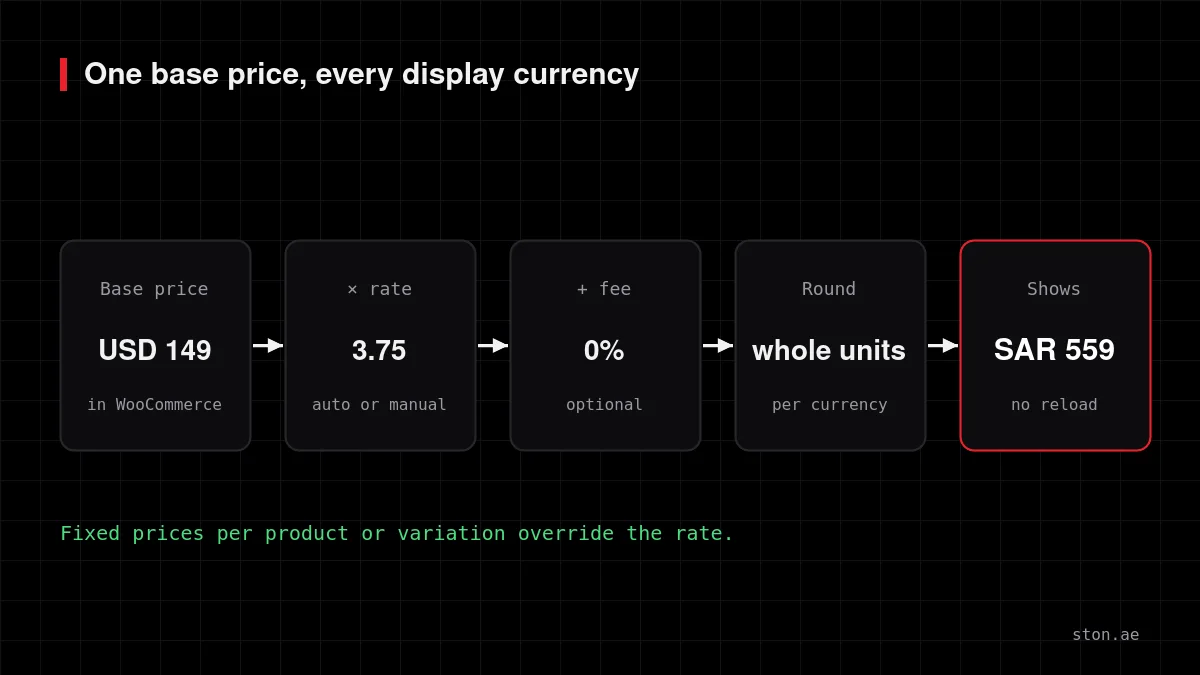
Short answer: keep your WooCommerce store in one base currency and add a currency switcher that converts prices at display time. Set each Gulf currency’s rate, rounding and symbol, choose the default currency by visitor country, and decide whether checkout charges in the shopper’s currency or yours. Ston Currency Switcher does all of this for free, with no page reload and without breaking page caching.
A shopper in Riyadh lands on your product page and sees $149.00. They now have to do mental maths, guess your exchange rate and wonder whether their card will charge a conversion fee. Some of them will just leave. Showing SAR 559 instead removes all three questions.
This guide covers how to show WooCommerce prices in AED, SAR and the other GCC currencies without managing six price lists.
Do I need a separate price for every currency?
No. The cleanest setup is one base currency in WooCommerce (Settings → General → Currency) and every other currency calculated from it when the page is shown. Your catalogue, reports and stock stay in one currency. If the plugin is switched off, your store is exactly as it was.
Where a converted price looks wrong for a market, you override that single product or variation with a fixed price. That is usually a handful of hero products, not the whole catalogue.
GCC currencies at a glance
Five of the six Gulf currencies are pegged to the US dollar, which makes conversion from a USD or AED base very stable.
| Country | Currency | Code | Peg | Decimals in practice |
|---|---|---|---|---|
| United Arab Emirates | UAE dirham | AED | 3.6725 per USD | 2 |
| Saudi Arabia | Saudi riyal | SAR | 3.75 per USD | 2 |
| Qatar | Qatari riyal | QAR | 3.64 per USD | 2 |
| Bahrain | Bahraini dinar | BHD | 0.376 per USD | 3 |
| Oman | Omani rial | OMR | 0.3845 per USD | 3 |
| Kuwait | Kuwaiti dinar | KWD | Basket of currencies, not a pure USD peg | 3 |
Note the three-decimal currencies. BHD, OMR and KWD are divided into 1,000 fils or baisa, so a converter that forces two decimals will show odd prices there.
How to set up AED and SAR in WooCommerce, step by step
- Install Ston Currency Switcher. It is free; download it from ston.ae and upload it under Plugins → Add New.
- Add your currencies. For each one, set the exchange rate (manual, or automatic updates twice a day), an optional fee percentage, the rounding rule, symbol position, decimals and separators.
- Pick a rounding rule per currency. “AED 547.23” looks like a conversion. Round AED and SAR to whole numbers, or to a price ending you already use. Keep three decimals for KWD, BHD and OMR only if you sell low-priced items; otherwise round to whole units.
- Choose the default currency by country. First-time visitors can see their own currency automatically. The plugin reads the country from a Cloudflare header or WooCommerce’s MaxMind geolocation.
- Place the switcher. Pills, dropdown, select box or inline links, with codes, symbols, names or flags. Add it with a shortcode, the Elementor widget, a classic widget, a menu item or a floating button.
- Decide the checkout currency. See the next section; this is the one decision that depends on your payment gateway.
Should checkout charge in the shopper’s currency?
Ston Currency supports both:
- Checkout in the customer’s currency. The shopper pays exactly the number they saw. Best for conversion, but your payment gateway must support charging in that currency.
- Checkout in your store currency. Prices are displayed in AED or SAR for orientation, and the order is charged in your base currency. Use this when your gateway only settles in one currency. Say so near the price, so nobody is surprised at the last step.
Coupons, minimum spend amounts, shipping costs and the free-shipping threshold are converted too, so “free shipping over $100” becomes the right amount in each currency.
Will a currency switcher break my page cache?
It can, and this is the most common complaint about multi-currency plugins. If your caching plugin saves the first version of a page it sees, a visitor from Dubai can end up seeing the cached USD prices, or the other way around.
Ston Currency is built for cached stores: switching currency updates prices, the cart and the mini cart in place without a page reload, and it keeps a separate cached copy per currency. It loads no jQuery on the front end, only one small script on pages that show a switcher, and adds no database queries per price. We run it on our own WooCommerce store with WP Rocket.
What about the new riyal and dirham symbols?
Saudi Arabia introduced a new riyal symbol in 2025, and the UAE introduced a new dirham symbol the same year. Font and operating system support is still catching up, so many stores keep using the codes SAR and AED, which display everywhere. Ston Currency lets you set any symbol text and position per currency, so you can switch when your fonts support the new glyphs.
Limits worth knowing
- Exchange rates are for display. Your gateway or bank applies its own rate when it settles a foreign-currency payment.
- Automatic rates come from ExchangeRate-API‘s free service and are off until you turn them on.
- Tax rules do not change with the display currency. VAT is still calculated by WooCommerce from the customer’s location.
FAQ
Is there a free WooCommerce currency switcher with unlimited currencies?
Yes. Ston Currency Switcher is free with no limit on currencies.
Can I set a fixed SAR price on one product?
Yes. Fixed prices can be set per product and per variation, and they override the exchange rate.
Can I link to a page in a specific currency?
Yes. Add ?currency=AED (or any active code) to the URL, which is useful for ads aimed at one country.
Does the visitor’s choice stick between pages?
Yes. The chosen currency is remembered on every page.
See it live and read how conversion, rounding and caching work on the Ston Currency Switcher page and in the technical documentation.