

Short answer: to stop clients breaking an Elementor site after handover, give them a simpler dashboard, lock the page structure while leaving text and images editable, and keep a log of every change. Elementor Pro’s Role Manager covers part of this per user role. A handover plugin such as Ston Handoff adds per-page locks, a change log, and (in Pro) reverts layout changes on the server.
Every agency knows the ticket. You deliver a clean Elementor build. Two weeks later the client “just changed a photo”, and now the hero is 900 pixels tall, the grid has collapsed on mobile and nobody can say what happened. You fix it for free, because arguing about it costs more than fixing it.
This guide covers what actually causes these breakages, what Elementor gives you out of the box, and how to set up a handover that holds.
Why do clients break Elementor layouts?
Almost never on purpose. The Elementor editor shows a client exactly the same controls it shows you: margins, column widths, container direction, responsive settings. One drag in the navigator or one wrong field and the layout shifts. The client sees the text they wanted to change, saves, and leaves.
The common causes we see:
- Dragging a widget into a different container while trying to select it
- Changing a container’s width or padding instead of the text inside it
- Deleting a section to “start again” and rebuilding it from memory
- Editing a header or footer template that is shared by every page
- Unpublishing or trashing a page from the WordPress list screen
What does Elementor’s Role Manager do?
Elementor Pro includes a Role Manager under Elementor → Role Manager. For each WordPress role you can choose “No access to editor” or “Access to edit content only”. With the second option, a user can open the editor and change existing text and images, but cannot add new elements or reach the layout and style controls.
That is a real improvement, and if you already pay for Elementor Pro on the client’s site it is worth turning on. Its limits are worth knowing too:
- It needs Elementor Pro on that site.
- It applies to a whole role on every page, not to specific pages you have finished.
- It does not log who changed what, so you still cannot answer “what happened to the hero?”.
- It does not stop a page being trashed or unpublished from the WordPress admin, which is outside the editor.
How to lock an Elementor layout and keep content editable
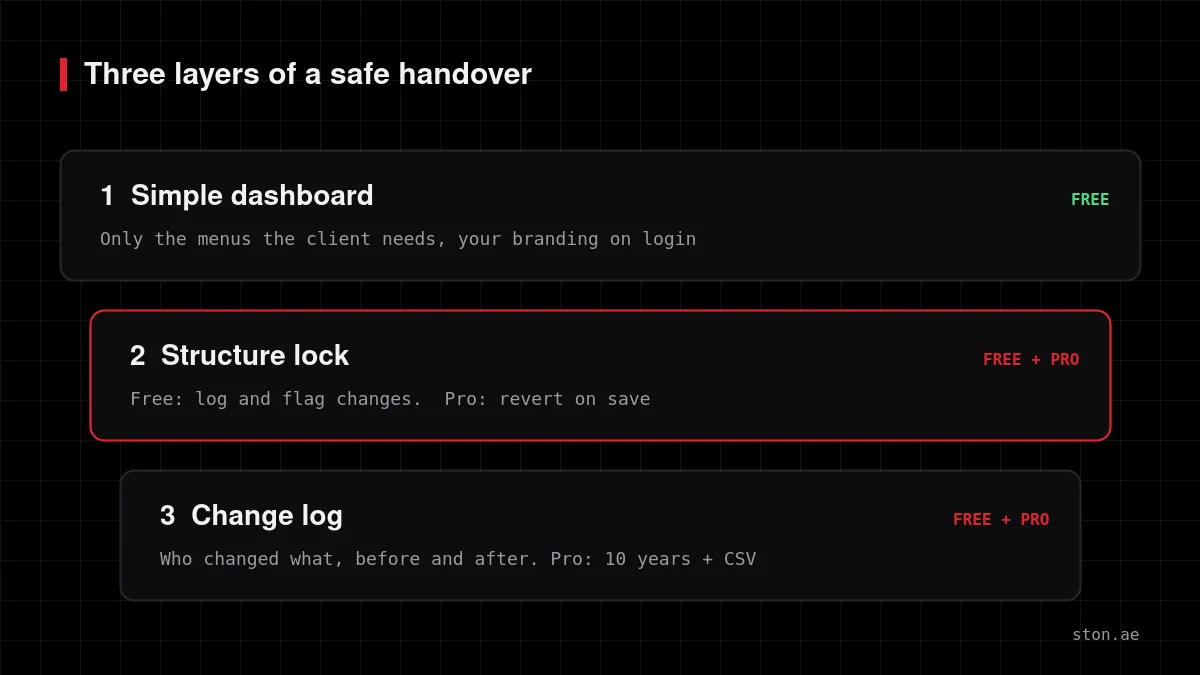
The setup we use on client handovers has three layers. You can do the first and third with free tools.
1. Give the client a dashboard they can understand
Most damage starts with confusion. Hide the menus the client never needs (Elementor templates, plugins, theme settings, tools) and leave the ones they do: pages, posts, media, and maybe products. With Ston Handoff you assign the client to a profile and they get a cleaned-up dashboard with your branding on the login screen.
2. Lock the structure, not the words
Pick each finished page and capture its structure as a baseline: sections, containers, widget order and layout properties. From then on the client can edit text, images and links, but structural changes are handled by the lock.
- Free: the lock runs in watch mode. Structural changes are recorded in the log and flagged in the editor so you see them, but nothing is reverted.
- Pro: the lock is enforced on the server. Every save, REST request and direct meta write is compared with the baseline. Structure changes are reverted, and the client’s text edits are kept. Locked pages also cannot be trashed, deleted or quietly unpublished by a client account.
Because Pro enforces the lock on the stored data rather than by hiding buttons, it also holds when a change arrives from somewhere other than the editor.
3. Keep a log you can show the client
When something does look wrong, a log turns an argument into a two-minute check: which user, which page, which element, before and after. The free plugin keeps 30 days of history. Pro keeps up to ten years and exports the filtered log to CSV.
Elementor Role Manager vs Ston Handoff
| Elementor Pro Role Manager | Ston Handoff (free) | Ston Handoff Pro | |
|---|---|---|---|
| Needs Elementor Pro | Yes | No | No |
| Scope | Per role, all pages | Per page | Per page |
| Structure changes | Controls hidden in editor | Logged and flagged | Reverted on save |
| Text and image edits | Allowed | Allowed | Allowed |
| Change log | No | 30 days | Up to 10 years + CSV |
| Delete and unpublish guard | No | No | Yes |
| Simplified client dashboard | No | Yes | Yes |
They also work together. If the site has Elementor Pro, set the client role to “edit content only” and use Handoff for page locks, the log and the dashboard.
A handover checklist that prevents half the tickets
- Create the client’s user with the lowest role that still lets them do their job.
- Assign them to a simplified dashboard profile.
- Lock every finished page. With Pro, lock the shared header, footer and Site Settings too.
- Leave a short tip on the screens where clients usually get stuck, instead of a PDF manual nobody opens.
- Add a support button so requests arrive with the page, the element and the user’s last changes attached.
- Walk the client through one real edit on a call before you hand over.
Ston Handoff includes the checklist, profiles and support button in the free version. Content intake forms, in-dashboard tips and full support context are in Pro.
Limits worth knowing
- Locks protect structure and layout properties. They are not a replacement for backups.
- Locks do not block your own work as the developer. When an administrator saves a locked page, the baseline refreshes to the new layout automatically.
- In Pro, the editor only hints at what is locked. The real check happens on the server, so a user cannot get around it by working outside the editor.
Download Ston Handoff free, or see what Ston Handoff Pro adds. The full list of hooks and data it stores is on the technical documentation page.
FAQ
Can I stop a client editing an Elementor page without Elementor Pro?
Not with Elementor alone; Role Manager is a Pro feature. A handover plugin can lock specific pages on free Elementor.
Can the client still change text and images on a locked page?
Yes. The lock covers structure and layout. Text, images and links stay editable.
Does a layout lock slow the site down?
No. The checks run when content is saved in the admin, not when visitors load the page.
What happens when the Pro licence expires?
The plugin keeps working; updates stop.