

Short answer: the “Apple-style” scroll effect is an image sequence: a short video exported as numbered frames, drawn onto a canvas and advanced frame by frame as the visitor scrolls. In Elementor you can build it without code by exporting your frames as WebP, uploading them, and placing an image sequence widget such as Ston Motion Pro’s Image Sequence Scroll in a pinned section.
You have seen it on product launch pages: a phone rotates, a car door opens, a building rises floor by floor, and it moves exactly as fast as you scroll. Stop scrolling and it stops. Scroll back and it rewinds. It feels like video, but it isn’t.
This guide explains how the effect works, how to prepare the frames so the page stays fast, and how to set it up in Elementor.
How does image sequence scroll animation work?
A normal video plays on its own clock. An image sequence follows the scrollbar. The technique has three parts:
- Frames. A short clip is exported as still images: frame_0001, frame_0002 and so on.
- A canvas. The page draws one frame at a time onto an HTML canvas element, which is much faster than swapping image tags.
- A scroll timeline. The section is pinned in place while the visitor scrolls through a set distance. Scroll progress from 0 to 100 percent maps to frame 1 through the last frame.
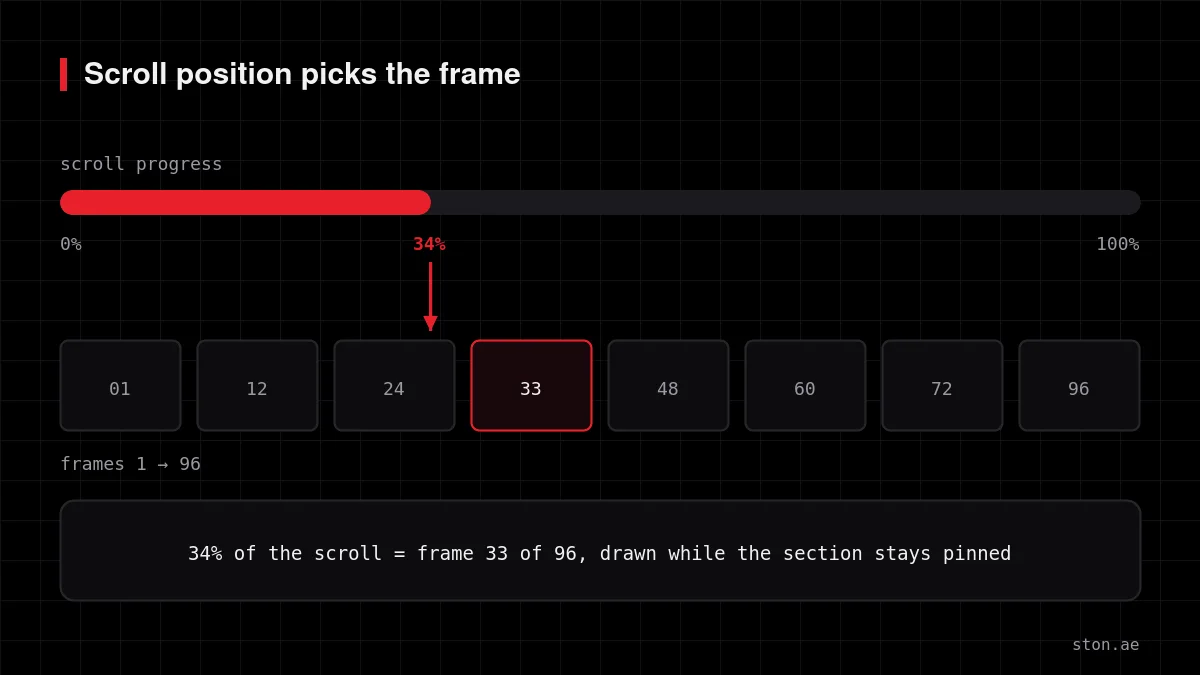
Most implementations, including ours, use GSAP’s ScrollTrigger for the pin and the scroll mapping, because it handles resizing, touch scrolling and refresh timing that are painful to get right by hand.
Why not just use a scroll-controlled video?
You can scrub an HTML5 video with scroll, and for some clips it is fine. The trouble is that browsers decode video for forward playback. Jumping to an exact frame, especially backwards, can stutter, and behaviour differs between Safari, Chrome and mobile browsers. Still frames on a canvas behave the same everywhere. The trade-off is weight: you are shipping many images instead of one compressed file, so preparation matters.
How to prepare frames that don’t slow the page down
This step decides whether the effect feels premium or sluggish.
- Keep the clip short. Two to five seconds of motion is usually enough. The scroll distance, not the clip length, sets how long the visitor spends in the section.
- Lower the frame rate. 24 frames per second, or even 15 to 20, is plenty for scroll scrubbing. Fewer frames means fewer requests.
- Export WebP at a sensible width. Around 1600 pixels wide covers most laptop screens. Go wider only if the sequence is truly full-bleed on large displays.
- Compress hard. Frames are seen for a fraction of a second each. Artifacts you would notice on a still photo disappear in motion.
- Do the maths before you upload. For example, a 4-second clip at 24 fps is 96 frames. At 60 to 120 KB per WebP frame, that is roughly 6 to 12 MB. If your total is far above that, cut frames or size before anything else.
If you have FFmpeg installed, one command does the export:
ffmpeg -i clip.mp4 -vf "fps=24,scale=1600:-1" -c:v libwebp -quality 75 frame_%04d.webpChange fps, the width and -quality until the total size and the look are both acceptable.
How to add an image sequence scroll in Elementor
These steps use the Image Sequence Scroll widget from Ston Motion Pro. It works on free Elementor; you do not need Elementor Pro.
- Install Ston Motion and Ston Motion Pro. The free plugin provides the core; Pro adds the GSAP widgets. Both are self-hosted, so nothing loads from a CDN.
- Upload your frames to the Media Library and add them to the widget in order.
- Set the scroll length. This is how far the visitor scrolls while the section stays pinned. Longer feels slower and more cinematic; shorter feels snappy.
- Add a Scroll Narrative if you want text. Headlines, paragraphs or whole Elementor templates can enter and leave at chosen percentages of the sequence, for example a feature title at 20 percent that leaves at 45 percent.
- Preview, not the editor. Scroll animations and pins are shown statically in the Elementor editor so the page stays easy to edit. Use Preview to see the motion.
Performance checklist
| Check | Why it matters |
|---|---|
| Scripts load only where the widget is used | Pages without the widget carry no GSAP or sequence code. Ston Motion registers scripts per widget instead of loading them site-wide. |
| Keep motion scripts out of “delay JavaScript” | Caching plugins like WP Rocket can delay scripts until first interaction, which breaks pinned sections. Exclude ston-motion, gsap and lenis. |
| Respect reduced motion | Visitors whose system asks for less motion should get a static version. Ston Motion skips pins for them automatically. |
| Don’t put the sequence in the first screen | A heavy hero hurts Largest Contentful Paint. Let a light headline load first and start the sequence below it. |
| Test on a mid-range phone | Desktop hides decoding cost. A real phone shows whether your frame size is right. |
Where this effect works, and where it doesn’t
It earns its weight when there is a real object or space to show: a product rotating, a villa from street to rooftop, a process step by step. It is wasted on abstract decoration, and three of them on one page will tire visitors and your hosting. One per page is a good rule.
A note on GSAP licensing
GSAP, including ScrollTrigger and the former bonus plugins, is free for commercial use since Webflow made it free in 2025. It still has its own standard license, separate from WordPress’s GPL. Ston Motion Pro ships GSAP unmodified under that license.
FAQ
Do I need Elementor Pro for image sequence scroll?
No. Ston Motion and Ston Motion Pro both work with free Elementor.
How many frames should an image sequence have?
As few as still look smooth. For scroll scrubbing, 60 to 150 frames covers most effects. Total weight matters more than the count.
Does it work on mobile?
Yes. Touch scrolling is normalised for pinned sections. On phones, smaller frames help a lot; test on a real device.
Is there a free way to try Ston Motion?
Yes. Ston Motion is free on WordPress.org with twelve widgets such as Split Text Reveal, Marquee and Scroll Counter. Image Sequence Scroll is one of the seven Pro widgets.
Every widget setting, hook and performance note is on the Ston Motion technical documentation.